

 Build Your Dream Website – with Website Wala



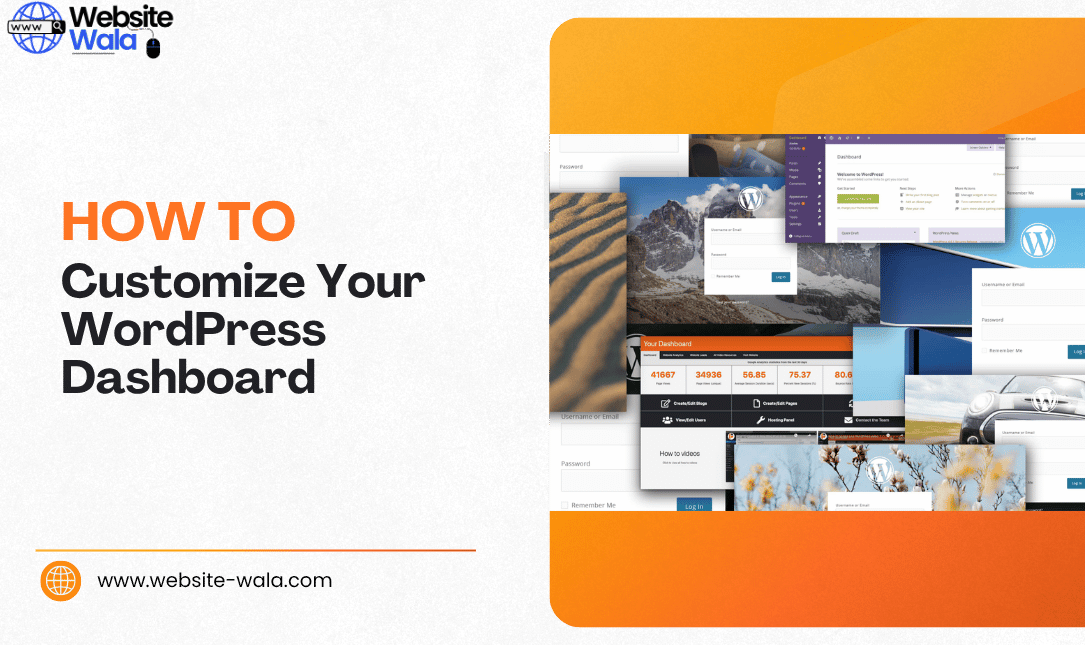
Learn How to Customize Your WordPress Dashboard with this detailed step-by-step guide. Improve your user experience, layout, and dashboard design easily.
Introduction: Why You Should Learn How to Customize Your WordPress Dashboard
If you use WordPress regularly, you already know that the WordPress dashboard is the control center of your website. It’s where you manage posts, pages, plugins, and settings. But did you know you can customize it to suit your workflow? Learning How to Customize Your WordPress Dashboard can save time, improve your productivity, and create a more enjoyable user experience.
Whether you’re a beginner or an experienced developer, dashboard customization lets you remove clutter, rearrange widgets, adjust colors, and even add custom plugins. In this WordPress tutorial, we’ll share a detailed, step-by-step guide on how to personalize and improve your dashboard design.
Understanding the WordPress Dashboard Layout
Before we dive into How to Customize Your WordPress Dashboard, it’s essential to understand its default structure. The WordPress dashboard layout typically consists of three main areas:
-
The Navigation Menu: Located on the left side, this menu contains links to Posts, Pages, Media, Plugins, Settings, and more.
-
The Main Workspace: The central area displays widgets like “At a Glance,” “Quick Draft,” and “Site Health.”
-
The Toolbar: Found at the top, it provides quick access to account settings and website preview options.
Understanding this layout is the first step toward effective WordPress customization.
Step 1: Simplify Your Dashboard by Managing Widgets
The easiest way to start learning How to Customize Your WordPress Dashboard is by managing widgets. WordPress widgets are the small boxes you see on your main dashboard screen. You can show or hide them to create a cleaner workspace.
Here’s how:
-
Log into your WordPress dashboard.
-
Click the “Screen Options” tab at the top right corner.
-
You’ll see a list of available widgets.
-
Uncheck the widgets you don’t need.
-
Drag and drop to rearrange the remaining ones.
This customization step declutters your screen and keeps only the information that truly matters to you. For example, bloggers might keep “Quick Draft” visible, while eCommerce site owners may prefer “WooCommerce Status.”
Step 2: Customize the WordPress Dashboard Layout
A well-organized layout can significantly enhance your workflow. You can rearrange widgets by dragging them into different positions or using plugins to design custom layouts.
If you’re managing multiple websites or teams, you can use dashboard customization plugins like WP Admin UI Customize or Ultimate Dashboard to create custom widget areas, rearrange menu items, or even add custom shortcuts.
This type of WordPress customization improves user experience by placing essential tools exactly where you need them.
Step 3: Change Colors and Styles to Match Your Brand
Visual appeal matters just as much as functionality. Another fun way to learn How to Customize Your WordPress Dashboard is by changing its colors and theme. WordPress allows you to choose from several built-in admin color schemes.
To change dashboard colors:
-
Go to Users → Profile.
-
Under “Admin Color Scheme,” choose your preferred color palette.
-
Click Update Profile to save changes.
If you want a fully branded dashboard design, you can go a step further by using plugins like Admin Color Schemer or White Label CMS. These allow you to select custom colors, upload your logo, and even modify login page styles to match your branding.
Step 4: Customize the Admin Menu
The left-side admin menu is the backbone of the WordPress dashboard, but it can quickly become overwhelming with too many items. Customizing it helps you streamline navigation.
Use the Admin Menu Editor plugin to:
-
Reorder or rename menu items.
-
Hide unnecessary menu sections from specific user roles.
-
Add custom links for frequently used pages.
This customization improves dashboard design and simplifies the user experience, especially for clients or team members who only need access to specific tools.
Step 5: Add Custom Dashboard Widgets
To fully master How to Customize Your WordPress Dashboard, you can create your own widgets for specific information or tools. These custom plugins can display analytics, recent sales, to-do lists, or team messages directly on the dashboard.
If you’re comfortable with code, you can add custom widgets using a simple PHP snippet. Alternatively, plugins like Ultimate Dashboard make it easy to create widgets visually—no coding required.
This level of dashboard customization transforms your WordPress dashboard into a personalized control center tailored to your exact needs.
Step 6: Use Custom Plugins for Advanced Dashboard Customization
For deeper WordPress customization, consider using custom plugins that extend the dashboard’s functionality. Popular plugins include:
-
White Label CMS: Rebrand the dashboard with your logo, custom menus, and login page.
-
Ultimate Dashboard: Add custom widgets and layouts.
-
Adminimize: Hide unnecessary elements from specific users or roles.
-
WP Admin UI Customize: Adjust menus, logos, and toolbar items easily.
These WordPress tips help you create a professional, branded dashboard experience that impresses clients and simplifies management tasks.
Step 7: Personalize User Roles and Permissions
If you manage multiple users, you can personalize what each person sees when they log in. For instance, editors might only see content-related tools, while developers get access to plugins and themes.
To achieve this level of customization, use plugins like User Role Editor to adjust permissions. This not only improves security but also streamlines the user experience, ensuring everyone has access to the tools relevant to their role.
Step 8: Maintain Your Custom Dashboard
After completing all the steps in How to Customize Your WordPress Dashboard, it’s important to maintain it regularly. Keep your custom plugins and themes updated to avoid security risks or compatibility issues.
You should also review your layout every few months to ensure it still fits your workflow. As your website grows, your dashboard needs might change — and continuous dashboard customization helps you stay efficient.
WordPress Tips for Better Dashboard Design
Here are some quick WordPress tips to enhance your dashboard design and improve usability:
-
Keep it simple: Avoid adding too many widgets or plugins.
-
Focus on essentials: Only display information that supports your daily tasks.
-
Use consistent colors: Match your brand’s colors for a cohesive look.
-
Test user roles: Log in as different users to ensure the layout fits everyone’s needs.
-
Stay updated: Check the WordPress tutorials section or forums for new customization features and ideas.
Conclusion: Take Control of Your WordPress Experience
Learning How to Customize Your WordPress Dashboard gives you the power to create a workspace that’s truly your own. By adjusting layout, widgets, colors, and custom plugins, you can transform your WordPress dashboard into a more efficient, personalized environment.
From rearranging widgets to branding your admin area, every customization you make enhances the overall user experience and streamlines your workflow.
Whether you’re a solo blogger, agency, or business owner, mastering dashboard customization is one of the most rewarding WordPress tutorials you can follow. Start today, and watch your productivity soar as your dashboard becomes the perfect reflection of your brand and working style.






