

 Build Your Dream Website – with Website Wala



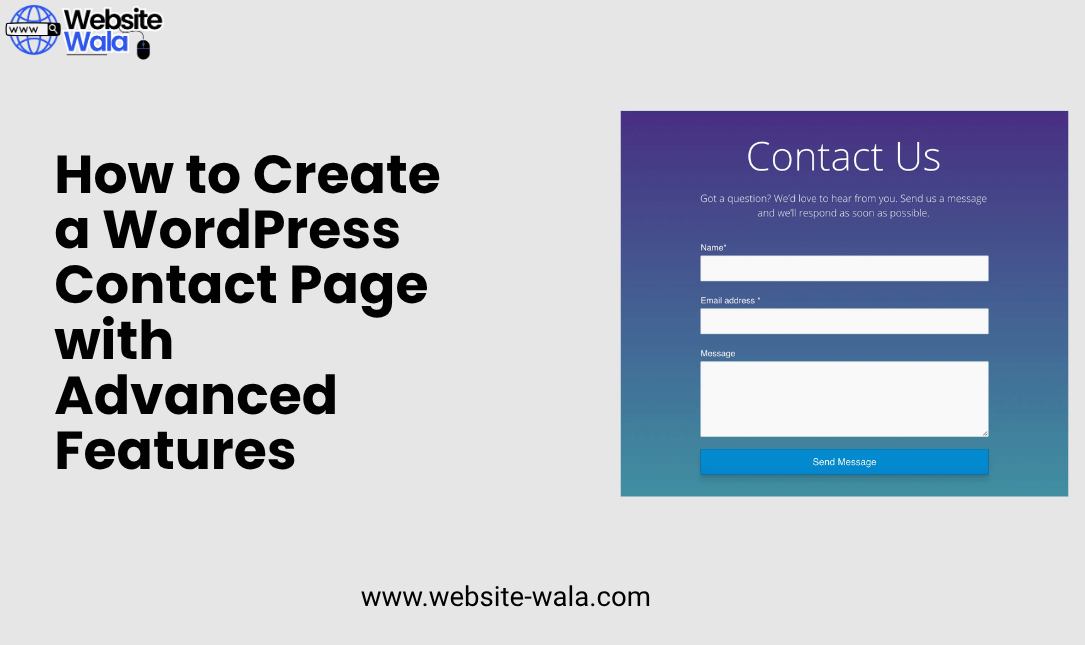
Learn How to Create a WordPress Contact Page with Advanced Features to boost user engagement, add interactive maps, and improve your website’s design.
Introduction
A well-designed contact page is one of the most essential elements of any successful website. It serves as a bridge between your visitors and your business, enabling communication, trust, and engagement. In this guide, we’ll walk you through How to Create a WordPress Contact Page with Advanced Features that not only looks professional but also enhances user experience and functionality. From interactive maps to social media integration and smart contact forms, you’ll learn how to build a dynamic page that truly stands out.
Why a WordPress Contact Page Matters
Before diving into How to Create a WordPress Contact Page with Advanced Features, it’s important to understand why this page holds such significance. A contact page is often one of the most visited sections of a website, acting as a point of conversion and trust. When optimized with advanced features and smart website customization, it can:
-
Encourage direct communication and feedback
-
Improve user engagement and satisfaction
-
Showcase your business’s professionalism
-
Support better website development and design flow
By incorporating WordPress plugins and creative design tips, you can transform a simple contact page into an interactive, conversion-driven hub.
Step 1: Choose the Right WordPress Plugin
When learning How to Create a WordPress Contact Page with Advanced Features, the first step is selecting the right WordPress plugin. There are several reliable tools available that simplify contact form creation and feature integration:
-
WPForms: A beginner-friendly option that supports drag-and-drop form building and social media integration.
-
Contact Form 7: A free, flexible plugin suitable for custom-coded forms.
-
Ninja Forms: Ideal for users seeking website customization and easy add-ons.
-
Formidable Forms: Great for complex website development and data management.
These plugins provide essential functionality while allowing you to enhance your contact page with advanced features like interactive maps and dynamic form logic.
Step 2: Design an Engaging Contact Form
Your contact form is the heart of your contact page. It should be simple, intuitive, and responsive. To optimize user experience, focus on the following design tips:
-
Keep It Short and Simple: Only ask for necessary details—name, email, and message.
-
Use Conditional Logic: Some WordPress plugins allow dynamic fields that appear based on user selections.
-
Enable Spam Protection: Use CAPTCHA or reCAPTCHA to prevent spam submissions.
-
Add File Upload Options: Perfect for businesses that need documents or images from users.
By applying these website customization practices, your contact form will not only look professional but also improve user engagement.
Step 3: Add Interactive Maps
Interactive maps are one of the most popular advanced features you can add to a WordPress contact page. They make your page more engaging and visually informative, especially for businesses with physical locations.
How to add interactive maps:
-
Google Maps Block or Embed: Copy and paste the embed code directly into your contact page.
-
WP Google Maps Plugin: Offers customization options like custom markers and map themes.
-
MapPress: Integrates easily with WordPress and supports multiple map styles.
Adding interactive maps improves user experience by helping visitors easily locate your office, store, or service area.
Step 4: Integrate Social Media Links
To maximize user engagement and create a seamless communication flow, include social media integration on your WordPress contact page. Platforms like Facebook, Instagram, LinkedIn, and X (formerly Twitter) can provide additional ways for users to reach out.
You can add:
-
Social media icons with direct links
-
Embedded social feeds
-
Share buttons to promote interaction
Many WordPress plugins and themes support social media integration by default, allowing you to customize the placement and style of icons to match your site’s design.
Step 5: Customize Your Page Design
Website customization plays a huge role in How to Create a WordPress Contact Page with Advanced Features. The look and feel of your page should match your brand identity and overall site design.
Here are some effective design tips for your contact page:
-
Consistent Branding: Use your brand colors, logo, and typography.
-
White Space: Keep the layout clean for better readability.
-
Responsive Design: Ensure the page works flawlessly on all devices.
-
Call-to-Action (CTA): Add clear CTAs like “Send Message” or “Get in Touch.”
Remember, user experience should always be at the center of your design decisions.
Step 6: Implement Advanced Functionalities
Once you’ve set up the basics, enhance your WordPress contact page with advanced features that elevate user engagement.
Examples of advanced functionalities include:
-
Chatbots or Live Chat: Provide instant support or automated responses.
-
Appointment Scheduling: Integrate calendar tools to let visitors book meetings.
-
Smart Notifications: Send auto-responses or email alerts to your team.
-
Analytics Tracking: Measure form submissions, clicks, and conversions.
These advanced features are key to improving user experience and ensuring that your contact page works as a powerful communication tool.
Step 7: Test and Optimize
After you’ve completed the steps in How to Create a WordPress Contact Page with Advanced Features, it’s time to test everything thoroughly.
-
Check Responsiveness: Ensure all elements display correctly on desktop and mobile.
-
Test the Contact Form: Submit test entries to verify that all messages are received.
-
Evaluate Loading Speed: Optimize images and scripts to maintain quick load times.
-
Gather User Feedback: Ask real users for insights on the usability and appearance.
Continuous optimization ensures your WordPress contact page remains efficient and user-friendly.
Step 8: Keep It Updated
The final step in learning How to Create a WordPress Contact Page with Advanced Features is maintenance. Regular updates to your WordPress plugins, forms, and interactive maps keep your contact page secure and functional.
-
Update Plugins: Outdated plugins can lead to compatibility issues.
-
Monitor Spam: Adjust filters as needed to prevent unwanted submissions.
-
Review Analytics: Use data to enhance user engagement and improve website development strategies.
A well-maintained contact page reflects professionalism and commitment to user experience.
Conclusion
Now that you understand How to Create a WordPress Contact Page with Advanced Features, you have the tools to transform a basic page into an engaging, interactive, and conversion-ready asset. By integrating interactive maps, social media integration, and customizable contact forms, you’ll elevate both your website customization and user engagement.
A thoughtfully designed contact page not only strengthens your website development but also builds trust and credibility with your audience. Follow these steps, apply the design tips, and keep your WordPress tools updated to ensure lasting success.






